Wednesday, May 25, 2011

How to avoid or remove Mac Defender malware

Computer Renaissance would like to help you to avoid or remove Mac Defender malware.

Summary

A recent phishing scam has targeted Mac users by redirecting them from legitimate websites to fake websites which tell them that their computer is infected with a virus. The user is then offered Mac Defender "anti-virus" software to solve the issue.
This “anti-virus” software is malware (i.e. malicious software).  Its ultimate goal is to get the user's credit card information which may be used for fraudulent purposes.
The most common names for this malware are MacDefender, MacProtector and MacSecurity. 
In the coming days, Apple will deliver a Mac OS X software update that will automatically find and remove Mac Defender malware and its known variants.  The update will also help protect users by providing an explicit warning if they download this malware. 
In the meantime, the Resolution section below provides step-by-step instructions on how to avoid or manually remove this malware.

Products Affected

Mac OS X 10.4, Mac OS X 10.6, Mac OS X 10.5

Resolution

How to avoid installing this malware

If any notifications about viruses or security software appear, quit Safari or any other browser that you are using. If a normal attempt at quitting the browser doesn’t work, then Force Quit the browser.

In some cases, your browser may automatically download and launch the installer for this malicious software.  If this happens, cancel the installation process; do not enter your administrator password.  Delete the installer immediately using the steps below.

  1. Go into the Downloads folder or your preferred download location.
  2. Drag the installer to the Trash. 
  3. Empty the Trash.

How to remove this malware

If the malware has been installed, we recommend the following actions:

  • Do not provide your credit card information under any circumstances.
  • Use the Removal Steps below.

Removal steps

  • Move or close the Scan Window
  • Go to the Utilities folder in the Applications folder and launch Activity Monitor  
  • Choose All Processes from the pop up menu in the upper right corner of the window
  • Under the Process Name column, look for the name of the app and click to select it; common app names include: MacDefender, MacSecurity or MacProtector
  • Click the Quit Process button in the upper left corner of the window and select Quit
  • Quit Activity Monitor application
  • Open the Applications folder
  • Locate the app ex. MacDefender, MacSecurity, MacProtector or other name
  • Drag to Trash, and empty Trash

Malware also installs a login item in your account in System Preferences. Removal of the login item is not necessary, but you can remove it by following the steps below.

  • Open System Preferences, select Accounts, then Login Items
  • Select the name of the app you removed in the steps above ex. MacDefender, MacSecurity, MacProtector
  • Click the minus button

Use the steps in the “How to avoid installing this malware” section above to remove the installer from the download location.

Note: Apple provides security updates for the Mac exclusively through Software Update and the Apple Support Downloads site. User should exercise caution any time they are asked to enter sensitive personal information online.

Source: http://support.apple.com/kb/HT4650

Wednesday, May 18, 2011

Six Things That Block Your Wi-Fi, and How to Fix Them

Computer Renaissance found this article useful and would like to share it with you.

Does your wireless network seem slow? A recent study by Epitiro, a UK-based broadband-analysis firm, shows that consumers lose an average of 30 percent of the data speed their broadband connection supplies when they use Wi-Fi connections in the home.

Why the slowdown? You've probably heard that some household electronic devices, including microwave ovens, baby monitors, and cordless phones, hamper Wi-Fi performance. To separate fact from fiction, we did some research and consulted an expert on the topic: Nandan Kalle, networking business unit manager for router manufacturer Belkin.

1. Public Enemy Number One: Your Neighbors' Wi-Fi Networks

"I'd say the biggest source of interference today for most people is their neighbors' Wi-Fi networks," says Kalle. The problem is that most existing Wi-Fi equipment operates on the crowded 2.4GHz band. "There are basically three nonoverlapping channels. I always describe it as a three-lane road that's really, really busy," Kalle adds.

If you use a 2.4GHz router and live in a densely populated area, your neighbors' Wi-Fi networks could interfere with yours, hindering the performance and range of your wireless network.

Linksys by Cisco Dual-Band Wireless-N Gigabit RouterThe solution: Buy a dual-band router that operates simultaneously at 2.4GHz and 5GHz. While the 2.4GHz band is necessary for supporting older Wi-Fi devices, 5GHz "is almost like an 11-lane highway that nobody's heard about yet," Kalle says. "There's much less congestion."

Newer Wi-Fi devices, including tablets such as the Apple iPad and Motorola Xoom, Internet-ready TVs with built-in Wi-Fi, gaming consoles, and business laptops, are all dual-band. "They all play in the 5GHz band. They can take advantage of that empty highway, and that's really going to help," Kalle says.

It's important to get a router that supports simultaneous 2.4GHz and 5GHz, such as the $100 Cisco Linksys E2500. Some older dual-band routers allow only one band at a time; that's a problem if you have older Wi-Fi devices (as most people do), because you'll have to leave your router at 2.4GHz. "You won't get any benefit from the 5GHz mode," says Kalle.

When you're shopping for a new router, look for a dual-band, 802.11n MIMO device, which typically has an "N600" label. The "N" refers to 802.11n, an international Wi-Fi standard approved in 2009. MIMO(multiple input, multiple output) technology provides greater range by using multiple antennas to transmit and receive data. And "600" refers to two bands, each transmitting at 300 megabits per second.

2. Household Electronics

Is your microwave oven, cordless phone, or baby monitor sabotaging your Netflix stream? Perhaps.

Most problems with cordless phones and microwaves involve products that use the 2.4GHz band. Many baby monitors operate at 900MHz and won't interfere with Wi-Fi. However, some wireless monitors are 2.4GHz, which can interfere with 802.11g or single-band 802.11n routers.

The solution: When choosing a wireless baby monitor, look for a 900MHz model such as the Sony 900MHz BabyCall Nursery Monitor ($45). Alternatively, get a Wi-Fi-friendly system such as the WiFi Baby 3G ($272), which connects to your existing wireless network.

Newer cordless phone systems like the Panasonic KX-TG6545B ($140) use DECT 6.0 technology and the 1.9GHz band, not the 2.4GHz or 5.8GHz bands.

3. Bluetooth Devices

Motorola Finiti Bluetooth headsetOlder Bluetooth devices did interfere with Wi-Fi networks--but those days have passed.

"Over the past several years, Bluetooth and Wi-Fi manufacturers have implemented specific techniques to minimize interference," says Kalle.

The solution: "Most people replace their phones every couple of years, so unless you have a really old phone or Bluetooth device, it's unlikely that [Bluetooth] will interfere with Wi-Fi," says Kalle.

4. Humans

You might recall from science class that the human body is mostly water, anywhere from 45 percent to 75 percent depending on your age and fitness level. Water can hamper Wi-Fi speeds, too.

"For example, say your room is very crowded and you're having a party. That can actually dampen your Wi-Fi signal--but that's an extreme case," says Kalle.

"When we're doing Wi-Fi testing in the lab and trying to get very accurate results, we have to make sure that we're not standing in front of the antenna, because we'll measurably impact the performance," he adds.

Humidity can affect Wi-Fi speeds too, but not enough for the average user to notice.

The solution: Relax. Don't worry about humidity, or those bags of water called people. After all, you can't control the weather, and it's unwise to be antisocial just to get better Wi-Fi performance.

5. Security Settings

Computer securityIn some low-end routers, a stronger security setting can moderately affect performance. However, that doesn't mean you should turn off security completely, or downgrade to weaker protection.

In recent years, the WPA (Wireless Protected Access) and WPA2 protocols have displaced the older and less-secure WEP (Wireless Encryption Protocol). On inexpensive routers that use WEP, upgrading to WPA may impede performance a bit. In contrast, more-robust devices generally have hardware specifically designed for WPA and WPA2 encryption; as a result, the stronger security protocols shouldn't slow Wi-Fi speeds on higher-end routers.

The solution: Kalle stresses the importance of router encryption. "You always hear about data theft, and it's so easy to enable security these days," he says. Since today's routers have security enabled out of the box, users don't have to worry about configuring it. But don't disable encryption, even if doing so may speed up your Wi-Fi a little.

6. Old Firmware

Why upgrade your router's firmware? Well, for performance improvements and occasionally a new feature or two.

"Whenever you have a problem, check to see if you have good firmware. Sometimes there are little bugs out there, and the router manufacturer may already have a fix," says Kalle.

When you buy a new router, it's always a good idea to check for the latest firmware as well.

The solution: Keep your firmware up-to-date. With older devices, you'll have to access the router's administrative interface--typically through a Web browser--to check for updates. The process is getting easier, though. "Our routers have an application--it's almost like iTunes--that tells you whenever there's new firmware available," says Kalle. "The user can update by just pushing a button."

Although the workings of your router may seem mysterious, following these simple tips can go a long way toward keeping your home wireless network in working order.

Source: http://www.pcworld.com/article/227973-2/six_things_that_block_your_wifi_and_how_to_fix_them.html

Wednesday, April 20, 2011

What To Do When Your Email Account is Compromised

Computer Renaissance found this article useful and would like to share it with you.

More and more I see spam coming from friends when I open my e-mail. In addition to this, people are telling me that they think their e-mail accounts have been hacked. Signs can be friends receiving messages you did not send, mail is marked read that they never saw, settings are changed, or anything else out of the ordinary. In any case, the question is the same: “What do I do?”

While many Ghacks readers may know to follow these steps, having a guide handy for others is a useful thing. I can imagine many readers are resources for friends, family, and coworkers. These steps can serve as a checklist to ensure thoroughness.

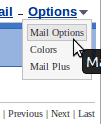
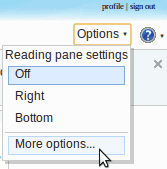
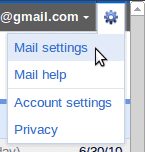
his is a guide on how to reasonably secure your e-mail account. What to do if you lose access to your account is a different problem for another article. This article assumes you still have access, but strange things (as mentioned) are going on. It will cover the three most commonly used e-mail account types: Gmail, Hotmail, and Yahoo Mail. While changing the settings is pretty easy, finding them can be less than obvious. Here are some screenshots to help you find the general settings page for your account.

YahooMail
Hotmail
 
Gmail
Step 1 : Change Your Password

You need to do this immediately. This is akin to changing the locks on your doors. When you do not know exactly who has a key to your home, the locks are a liability. Count yourself lucky that you can get into your account. To change your password, log-in and go to Settings. Then follow the steps appropriate to your account.

  • In Gmail: Mail Settings > Accounts and Imports > Change Password
  • In Hotmail: More Options > Account Details (look for “Change” next to password)
  • In Yahoo Mail: Mail Options > Account Information > Change your password
Step 2 : Check Your Recovery E-mail Address

Your recovery e-mail address is the one that you use to reset/regain your password. However, if it was changed, it can be used to get the password to your account. Take a look to see if it is set to another account you own. If not, change it immediately. You also may want to follow these steps on that account.

  • In Gmail: Mail Settings > Accounts and Imports > Change Password Recovery Options
  • In Hotmail: More Options > Account Details (look for “Remove” next to an odd e-mail)
  • In Yahoo Mail: Mail Options > Account Information > Update password-reset info
Step 3 : Change Your Hints

Most people forget about this, but it is a good idea to change your hints. If the hacker knows the answer, they may be able to regain access. This usually requires the recovery e-mail address to be altered, but it is still better to change your hints. Since hints are usually used to reset passwords, they can be used to change your password.

  • In Gmail: Mail Settings > Accounts and Imports > Change Password Recovery Options
  • In Hotmail: More Options > Account Details (look for remove next to a question)
  • In Yahoo Mail: Mail Options > Account Information > Update password-reset info
Step 4 : Check Your Forwards

Checking your forwards is going to be a tedious process, but it is important. If you only have time to skim them over, then do so but make a thorough look your next priority. Your bank account may depend on it. Your e-mail account can be set up to send letters to other e-mail accounts. Most websites are set up to send new passwords to your e-mail address. That means that an unscrupulous person could ask the site for your password, set up your account to forward it to an account they have access to, and the get into the site. That could be a bank site, a blog, FaceBook, or anything else.

  • In Gmail: Mail Settings > Forwarding and POP/IMAP
  • In Hotmail: More Options > Email forwarding
  • In Yahoo Mail: Mail Options > POP & Forwarding (note: a premium service)
Step 5 : Change All Your Passwords on Connected Accounts

Sadly, you have to assume that your forwards are compromised. You are going to have to go through each site you used your e-mail account to sign up with and change the password and hint. You might even want to associate them with a separate account to isolate critical e-mails. Alternatively, you could just change your password and hint on sensitive sites. Your bank and any financial websites should be first. Social networking site like FaceBook and Twitter should be next.

Keep in Mind

You should always use a strong password for your accounts: one with uppercase, lowercase, numeric, and symbol characters. Ideally, you should have a different one for each account. At the very least your e-mail, financial, and social networking sites should have separate passwords. Security is not about absolutes, but about making it difficult for others to gain access to you account.

It is worth noting that each of these services has an extra security feature. You can actually set up your account to use your phone for e-mail recovery. As I have not used it, it is beyond the scope of this article, but is worth considering.

Addendum

If you have troubles logging in at all, you may want to take a look at the following guides to resolve the problem:

The guides aid you in password, username and account recovery.

Source: http://www.ghacks.net/2011/04/11/what-to-do-when-your-email-account-is-compromised/

Friday, April 15, 2011

Top Automation Tools to Look At

Computer Renaissance found this article useful and would like to share it with you.

Here are some Automation tools that you should look at. They are free and can help you different ways.

Data Visualization

It is an easy way to create reportsfrom any data.  You can easily create report layouts and import data from almost any data base system like Oracle, MySQL, PostgreSQL, Firebird, MS SQLServer, IBM DB2, Interbase, SQLite or from external files and create hundreds of documents in whatever format you want (PDF, RTF, XLS, XML). Cost: Free

DataVisualization 400x244 Top Automation Tools to Look At

The application works on a variety of OS formats:  Linux, MS WindowsXP/Vista/2003/7 ,  and Mac OS .  It supports  English, Spanish, and Polish.

[Download Link]

Do It Again

If you’ve ever wanted a task to be repeated on your computer, this program will help you do that. It allows you to make your computer automatically perform a task for you, whenever you want.  For example, if there is something that you do on your computer over and over, and you do it exactly the same way every time (such as backing up your pictures, checking web-based email for new messages, etc.), you can tell Do It Again how to perform that task (by doing it once yourself to create the new task). After that you record a task (or macro) then sit back and watch as your computer automates that task, clicking the mouse and pressing the keyboard by itself.  If it helps, this is also called macro or automation software, as it allows you to record a macro, then play it back to automate the actions of that macro. Cost: Free.

DoItAgain Top Automation Tools to Look At

[Download Link]

Auto Mute

Control the sounds on your PC. How?  This small software utility  will make your PC silent when it’s turning on or is waking up. Solution is very easy! The sound is automatically muted when the computer is turning off or is going to suspend mode. The next system start is absolutely silent even if you forgot to turn the sound off in previous session. After that you can enable sound effects manually, using a shortcut combination. Moreover, you may use this keyboard shortcut to quickly switch the sound on and off.

Why is this program beneficial? Well around your house if you have small children trying to sleep, it won’t wake them up. If you are at work, you can control the sound there too.

AutoMute Top Automation Tools to Look At

[Download Link]

Source: http://www.windows7news.com/2011/04/13/top-automation-tools/

Friday, March 25, 2011

Get Started With a VPN: For Beginners, Power Users

Computer Renaissance found this article useful and would like to share it with you.

Do you want to be secure--I mean really secure--when you're on the Internet? If so, then you want a virtual private network.

A VPN creates a secure "tunnel" across the Internet between you and your office, a VPN provider, or your home. Why would you want that? Easy-to-use programs such as Firesheep make it easy for snoops to see what you're writing in your e-mail messages, posting to your Facebook page, or buying online. But with a VPN, you can surf the Web through that virtual tunnel, away from prying eyes, and your Internet traffic is encrypted.

Whether you just want to access Wi-Fi networks on the road without potentially exposing your activities to nosy strangers, or whether you need to enable a team of remote employees to handle business securely on the Internet, you can find a VPN to fit your needs. This guide will walk you through VPN essentials for beginners and power users.

VPN for Beginners

The easiest and least costly way to get a VPN service is to obtain one from your company, school, or organization. Not on the road often? Check with your IT department to see if they offer a VPN to all users. If they do, life is good: Just install the corporate VPN software, set it up, and you're ready to go. The next time you turn on your PC, fire up the VPN application before you start surfing the Web.

What if your IT department doesn't have a VPN--or what if you don't have an IT department? You're not out of luck. Lately, numerous VPN providers, including Banana VPN, Black Logic, LogMeIn Hamachi, and StrongVPN, have started offering their services for a fee, generally from $15 to $20 a month. To learn more, take a look at a comparison of three personal VPN services.

How do you go about picking one? If a service has an online forum, check what their customers have posted. Call or e-mail to see if real people answer. Generally speaking, bigger is better. If they're a tiny company, that may be fine for you as an individual, but they probably can't give you the support a small company needs.

Is the privacy factor alone worth the effort? Yes, but VPNs offer other advantages as well. For example, if you're in Canada, ordinarily you can't watch a U.S. TV show on Hulu. But you can access the show if you use a VPN to obtain a U.S. IP (Internet Protocol) address.

Some VPN providers offer another benefit: anonymous Web browsing, which allows you to roam the Internet without being tracked. If your ISP blocks some applications, such as Skype or other VoIP (Voice over Internet Protocol) applications, you can use a VPN to get around the restrictions.

These VPN services may sound exactly like what you need. Beware, however: Not all services are created equal. If a service doesn't have enough VPN servers--technically, VPN concentrators--to support the number of customers, you may experience poor Internet speeds or be unable to make a connection at all.

So, before subscribing to a VPN service, look into what its customers say about it. Better still, if the company offers a free test period, take advantage of it before paying money for a service that may not meet your needs.

VPN Fundamentals for the Power User

Do you want to lock down your Internet connection when you’re on the road? If so, the best approach is, of course, to use a VPN. You’re set if you work for a company that can provide you with a VPN. But if you run your own small business or home office, you also have options.

You can find several, inexpensive ways to get a VPN of your own. Besides paying $15 to $20 a month to a VPN subscription service, you might be able to install a VPN server into your router using open-source, alternative router firmware such as DD-WRT and OpenWRT. This firmware will allow you to use many, but not all, Wi-Fi routers and access points as VPN endpoints.

VPN on Your Router

Before flashing your Wi-Fi hardware with any alternative firmware, make sure that it's supported. The last thing you want to do is to "brick" your wireless device--rendering it useless--just to set up a small VPN. Be sure to consult the DD-WRT supported-device list or the OpenWRT supported-device list. As these lists are all works in progress, check back often if you buy a brand-new router or access point.

If you'd rather not take your hardware's life into your own hands, some routers, such as Buffalo Technology's WZR-HP-G300NH AirStation Nfiniti Wireless-N High Power Router, come with DD-WRT already installed.

VPN Server Software

Some desktop operating systems, including Windows (from XP to Windows 7) and Mac OS X, include VPN server software. Granted, these are very simple VPNs, but they may be all you need. Of course, the Windows Server family comes with more-sophisticated VPN setups. If you're running all Windows 7 clients and Windows Server 2008 R2, you may also want to consider using DirectAccess, an advanced IPSec VPN that runs over IPv6 on ordinary IPv4-based LANs and the Internet.

If you don't choose to use DirectAccess but opt for Microsoft's older VPN technologies, Windows Server 2008 R2 has a helpful new feature: VPN Reconnect. Just as the name suggests, it will try to connect VPN sessions automatically if they're interrupted by a break in Internet connectivity. This function can be handy for users with spotty Wi-Fi connectivity, since they won't need to manually reconnect with the VPN after they reestablish a network connection.

Another way to add a VPN to your small network is to install VPN server software yourself. The best known of these is OpenVPN, which is open-source. It's available in versions for almost all popular desktop operating systems, including Linux, Mac OS X, and Windows.

If setting up native OpenVPN sounds a little too technical for you or your staff, you can run it as a VMware or Windows Virtual Hard Disk OpenVPN virtual appliance. With this arrangement, you'll have a basic VPN up and running in minutes.

But OpenVPN is far from the only VPN software out there. Other programs worth considering are NeoRouter and Tinc. If you want more than just VPN services and do-it-all network-services software packages, I highly recommend the open-source Vyatta, Core 6.1. Vyatta includes OpenVPN.

VPN Appliances

If you plan on having more than a dozen or so users on the VPN at one time, though, you'll want to use an inexpensive VPN hardware appliance such as the Juniper Networks SA700 SSL VPN Appliance, the SonicWall Secure Remote Access Series, or the Vyatta 514.

No matter which VPN you use, you'll need to set your firewall to allow VPN traffic. On many routers and firewalls, this task can be as simple as setting VPN passthrough to allow VPN traffic. Typically, your choices will be PPTP (Point-to-Point Tunneling Protocol), L2TP (Layer Two Tunneling Protocol), or SSL (Secure Sockets Layer). Allow only those VPN protocols that you'll be using--after all, when in doubt with firewalls, it's safer to forbid than to permit.

Check your VPN’s documentation to see which ports you’ll need to open. As for SSL VPNs, they typically use port 443, the usual port for SSL-protected Web servers, so that port should already be open.

OpenVPNNaturally, no matter what VPN you're running and regardless of your network setup, a VPN in a small business is likely to limit its users’ speeds. For example, in my own home office, my Charter cable Internet connection gives me a 25-megabits-per-second downlink and a 3-mbps uplink. This means that no matter how fast my remote network connection is when I connect to my OpenVPN server, my maximum throughput will be limited to 3 mbps.

I've often seen small businesses flummoxed by slow VPN connections. That usually happens because neither the users nor the in-house IT staffers (often one and the same) realize that the math of Internet connections means that the slowest link along the VPN route will determine the VPN's top speed. If you want a really fast VPN, you'll need to bite the bullet and get a high-end Internet connection from your ISP.

Source: http://www.pcworld.com/businesscenter/article/223044-1/get_started_with_a_vpn_for_beginners_power_users_and_it_pros.html

Monday, March 21, 2011

Hibernate VS Sleep VS Shut-Down

Computer Renaissance found this article useful and would like to share it with you.

There are many ways to shut down and restart your computer, but – which does what, and which should you use when ?

The answer depends mostly on you. Are you into saving energy or boot-up time? How often do you leave your computer and for how long ?

There are three main shut-down options available in Windows: Shut-Down, Sleep and Hibernate (names may vary depending on the Windows version). In Vista and Windows 7, there is also a fourth option; Hybrid Sleep.

Let’s explore the topic.

Environmental friendly

If your concern is to save energy, and you don’t mind the longer Boot Up time – then you should always use the “Shut Down” option. This will shut down every running service and application and wipe clean your RAM. This option saves the most energy as the computer is not using any power at all when in this state. There might be some power consumption from the main-board as it is still connected to your outlet, but this is significantly little.

Hibernate Vs Sleep

The difference between the two is power-consumption – one use less power than the other.

Sleep Feature = Pause

129107 simple red square icon media a media27 pause sign 220x220 Hibernate VS Sleep VS Shut DownSleep is a power-saving state which keeps enough voltage across your RAM to retain the memory for when you “wake up” your computer again.  This mode use the most power of all the “Power-Off Modes” as the computer need to be able to keep your RAM alive. The Sleep Feature is recommended when you leave your computer for a short period (like going to lunch or step out for a few hours). Putting your computer into the sleep state is like pausing a DVD player—the computer immediately stops what it’s doing and is ready to start again when you want to resume working (usually within seconds).

Hibernate

The Hibernate function was intended primarily for laptop users (though available for Desktop Computers as well). This mode let you save much more power when not using your computer (as in saving battery). When you put the computer in Hibernate Mode, it stores the contents of your RAM (Services, clipboard etc.) to your hard-drive (hiberfile.sys) which on reboot is read back into the RAM which takes about a minute to be completed, but on the upside you do save more energy.

Hybrid Sleep

Hybrid sleep is both Sleep and Hibernate, primarily intended for Desktop Computers. Hybrid Sleep keeps the RAM alive (as in Sleep Mode) and stores the Content of your RAM to your Hard-Drive (in case of a power failure). It also stores any open documents before putting your computer into a low-power state which allows for a quick Reboot later on. When hybrid sleep is turned on, putting your computer into sleep automatically puts your computer into hybrid sleep.

Source: http://mintywhite.com/windows-7/7maintenance/hibernate-sleep-shutdown/

Monday, March 7, 2011

How to Attach Sticky-Note Reminders to Windows and Applications

Computer Renaissance would to share this article with you.

image

Some applications come with a boatload of keyboard shortcuts; these can make you very fast, but can be difficult to remember, especially if you customized some of them. What if you could have your own little cheat sheet that would pop up next to the application every time your ran it? Read on to see how you can make one.

We’re going to be using an excellent (and free) application called Stickies. If you don’t have it yet, go to the Stickies homepage, download it, and install it.

Creating Your First Cheat Sheet

The first thing we’re going to do is create the sticky note containing whatever info you want to have on hand. With Stickies running, hit Win+S. You should see a blank sticky note, much like the one below.

screenshot_174

Yours may not have the current date and time in the caption – that’s a setting you can toggle, but we don’t need it for now.

Next, set the title for your sticky by clicking it and pressing Ctrl+Shift+T. You can also right-click the caption and select Set Title from the context menu.

image

Now that you’ve set the title (say, Total Commander Tips), fill in the text with whatever you’d like to remember. Use Ctrl + and Ctrl – to increase or decrease the font size, Ctrl+B for bold, Ctrl+I for italics. You can also select just a portion of the text to make it larger (think subheadings).

With your sticky note all ready, it’s now time to attach it to the window. Make sure the “target application” is running, so we’d have a window to attach the note to. Then, right-click the note’s caption and select Attach.

image

In the Attach Sticky window, locate your application in the list and click it. You can also toggle the box that says “Only if visible” to have the note visible only when the application window isn’t minimized.

image

The sticky note you created will now appear whenever you run your application, and disappear when you close the app. If you’d like to make the note always on top, click it and hit Ctrl+T. This way no other windows would cover it. That’s it – you now have a handy application-specific cheat-sheet.

Source: http://www.howtogeek.com/howto/45189/how-to-attach-sticky-note-reminders-to-windows-and-applications/

Five Tips to Clean Up and Organize Your PC

Computer Renaissance found this article useful and would like to share it with you.

Tomorrow is National Organize Your Home Office Day for 2011. While many will be focused on finally filing that growing pile of documents and receipts on their desk, actually implementing a filing system that has some logic behind it, or tweaking the feng shui of the physical office environment in some way, it is just as important to take some time out to clean up your digital office--the PC.

The PC is the centerpiece of office productivity. It is the heart and soul of the office, and when it is in cluttered disarray everything else suffers. With some help from iolo--makers of System Mechanic, here are five tips to help you clean and organize your PC.

The Disk Cleanup utility in Windows can identify and remove files you no longer need.1. Uninstall. Uninstall programs that you no longer need or use. They take up space on your hard drive, may be loading in memory and wasting system resources, and represent a possible security risk since you are unlikely to patch or update software you aren't even using. Some software applications include an uninstall option in the Start Menu folder. The best place to start, though, is the Programs and Features option in the Windows Control Panel.

2. Delete. Delete unused, old or duplicate files, e-mails, e-mail addresses, bookmarks and favorites. The average American adult has more than 1,800 digital files, according to the Consumer Electronics Association. That number goes up dramatically, once you factor in all the duplicate, unused or old files that unnecessarily take up your hard drive's space and make searching for the files you need more time-consuming, and grinding on your processor and hard drive. The Disk Cleanup utility in Windows is one good way to identify and remove unnecessary bits from your hard drive.

3. Clean. Once you've uninstalled unused programs, make sure to clean out your registry as well. Invalid or out-of-date registry settings can slow down your computer's boot time and cause weird hesitations and freezes during its operation. Messing with the Windows registry can have catastrophic consequences if done wrong and identifying and removing unnecessary registry entries is easier said than done. This is one area where using a third-party tool like System Mechanic makes sense.

4. Organize. Organize your files. Once unneeded programs are uninstalled, unused or duplicate files deleted and registry cleaned out, make sure the rest of your files are well-organized. Use a logical file naming system and put files into folders that make sense and are easy to remember and access. You can group files chronologically, or by customer, or by project--it is up to you to determine a system that makes the most sense for you and keeping your digital office functional and tidy.

5. Personalize. Personalize your computer. More personalizing helps you remember things and be better organized. Moreover, with a computer that's configured to suit your needs, you are more likely to remain better organized following Organize Your Home Office Day and throughout the year. Explore things and do not hesitate to right click on different tools. The Control Panel is the best place to begin.

Follow these five tips to declutter and organize your PC. It can be tough, tedious work depending on the state of your PC, but the effort will be worth it when you are able to work more efficiently and more effectively.

Source: http://www.pcworld.com/businesscenter/article/221477/five_tips_to_clean_up_and_organize_your_pc.html#tk.hp_new

Wednesday, February 9, 2011

How to improve remote desktop protocol performance

Friendly Computers found this article useful and would like to share it with you.

Improve your experience with Remote Desktop Protocol when accessing your Windows Terminal Services or Windows Desktop. This will help correct typing delays, for example.

Many people use Remote Desktop to access Windows Desktops every day. Many of us have been doing this for too long to remember. Nevertheless, most do not bother to look at the settings in the Remote Desktop Client to customize and improve the performance when working remotely.

This applies especially to connections made over the Internet, a VPN connection, or to a busy Terminal Server. Also, connections to Terminal Services from older WYSE terminals will be greatly improved.

Have you ever experienced severe typing delays? Read on…

1. Open the Remote Desktop Client. On Windows 7, simply hit the Windows key, start typing remote desktop, and hit enter. You can also find it under Programs > Accessories on most recent Windows versions.

2. In the “Display” tab (you’ll have to select “Options…”), crank the Color Depth down to 15 (aka “thousands”) or 16-bit depending on your preference. The lower the color settings the faster the connection.

3. In the “Local Resources” tab, un-check Printers and set Audio to “Do not play”. If you require the ability to print to your locally attached printer or need to hear audio, ignore my suggestions accordingly. Note that un-checking Printers is also especially useful to reduce the overhead involved with making the destination Terminal Server attempt to install your printers (and sometimes cause the spooler service to crash). The less additional “channels” (resources) that you connect the faster the connection.

4. In the “Experience” tab, un-check all options except Bitmap caching. All other options consume extra bandwidth, and offer little benefit for most users of Remote Desktop. This is possibly the most important change to make, as items such as “Themes” can quadruple the bandwidth consumption under the right circumstances.

5. Back in the “General” tab, enter your destination computername and select connect as usual. Enjoy the faster connection!

Note that, as mentioned, these settings also apply to WYSE terminals, but the means of getting to them is slightly different.

Of course, you can also do the same with your Mac if using the Microsoft “Remote Desktop Connection for Mac” Client. Just look under Preferences…

Source: http://www.tech-recipes.com/rx/11235/how-to-improve-remote-desktop-protocol-performance/